
Pixels to Inches in Photoshop
Photoshop can show the same document in pixels or inches. The trick is changing the display unit without letting it resample and throw pixels away.
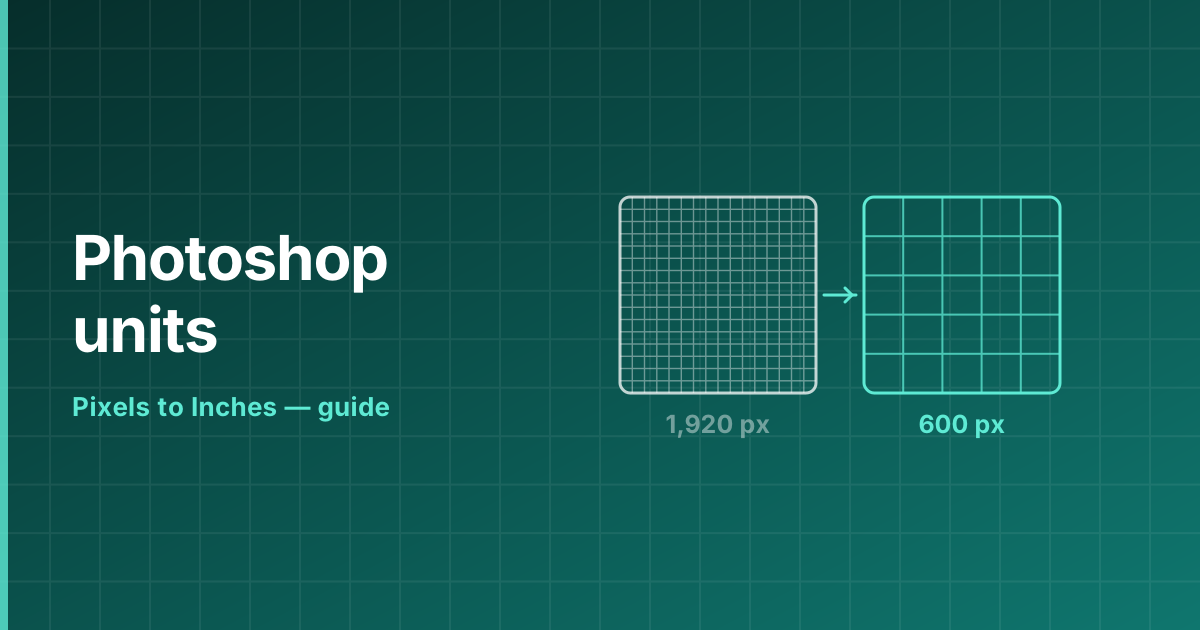
Change the document units without resampling
This is the safe route, and the one you want almost every time:
- Open Image → Image Size (Alt/Option + Ctrl/Cmd + I).
- Untick Resample. This is the critical step — it locks the pixel count.
- Change the unit dropdown from Pixels to Inches.
- Set Resolution to the density you need: 300 for print, 96 for screen.
- The width and height in inches update instantly, and the pixel dimensions at the top stay exactly the same.
Change the ruler units
To make rulers, guides and the info panel read in inches, open Edit → Preferences → Units & Rulers (Photoshop → Settings on macOS) and set Rulers to Inches. Right-clicking directly on a ruler offers the same list.
This changes only how measurements are displayed. Nothing in the file is altered.
When resampling is the right choice
Leave Resample ticked only when you genuinely need a different pixel count — scaling a photo down for the web, for example. Resampling upward invents pixels that were never captured and softens the result.
If a print shop rejects a file for being under 300 DPI, the fix is usually to print it smaller rather than to resample it larger.
Frequently asked questions
How do I change pixels to inches in Photoshop?
Image → Image Size, untick Resample, then switch the unit dropdown to Inches and set the resolution. The pixel count stays untouched.
Why does my image get blurry when I change to inches?
Resample was left ticked, so Photoshop rebuilt the pixel grid. Undo, untick Resample and try again.
How do I set 300 DPI in Photoshop?
In Image Size with Resample unticked, type 300 into the Resolution field. The physical dimensions shrink to match; the pixels do not change.
Does switching the rulers to inches change the print size?
No. Rulers, guides and the Info panel change what they display and nothing else; the file is untouched. Print size lives in Image → Image Size, where it is the resolution field — not the ruler — that decides how many inches the pixels cover.